Go to Jobs, click My Jobs, then select Saved. On mobile, tap Jobs, open Job Tracker, and your Saved filter should be there waiting.
That's the easy part. However, the issue is that many treat saved jobs like a junk drawer, then wonder why they feel scattered, late, and half-committed when it's time to apply. If you want to know how to find saved jobs on LinkedIn, fine. But if your list is bloated, glitchy, or abandoned, finding it won't help much.
Your Saved Jobs List Is a Mess
Most advice on this topic is too shallow. It acts like the hard part is spotting the right tab. It isn't. The hard part is keeping a saved list useful after you've stuffed it with roles you meant to revisit “later.”
That's why so many professionals lose momentum. Approximately 75% of job seekers use the Save feature, and 68% of users who save at least three jobs apply to one within two weeks according to StoryCV's breakdown of LinkedIn saved jobs behavior. The feature matters. The mess you create with it matters too.
A saved job isn't progress. It's a placeholder.
If you're targeting remote roles, this gets even more important. A crowded list fills fast when you're comparing companies across locations and time zones. That's also why it helps to learn how to find vetted remote jobs before you start saving everything that looks decent.
Here's the blunt version:
- Saving isn't applying: A bookmark feels productive. It often isn't.
- Clutter kills judgment: Old roles stay in the list long after they stop being relevant.
- You need a system: Not a bigger pile.
A clean pipeline beats a huge one. If your applications also feel generic once you finally start sending them, fix that next with ways to stand out in job applications.
Find Saved Jobs on a Desktop Browser
Desktop is the cleanest way to do this. Bigger screen. Fewer taps. Less guessing.
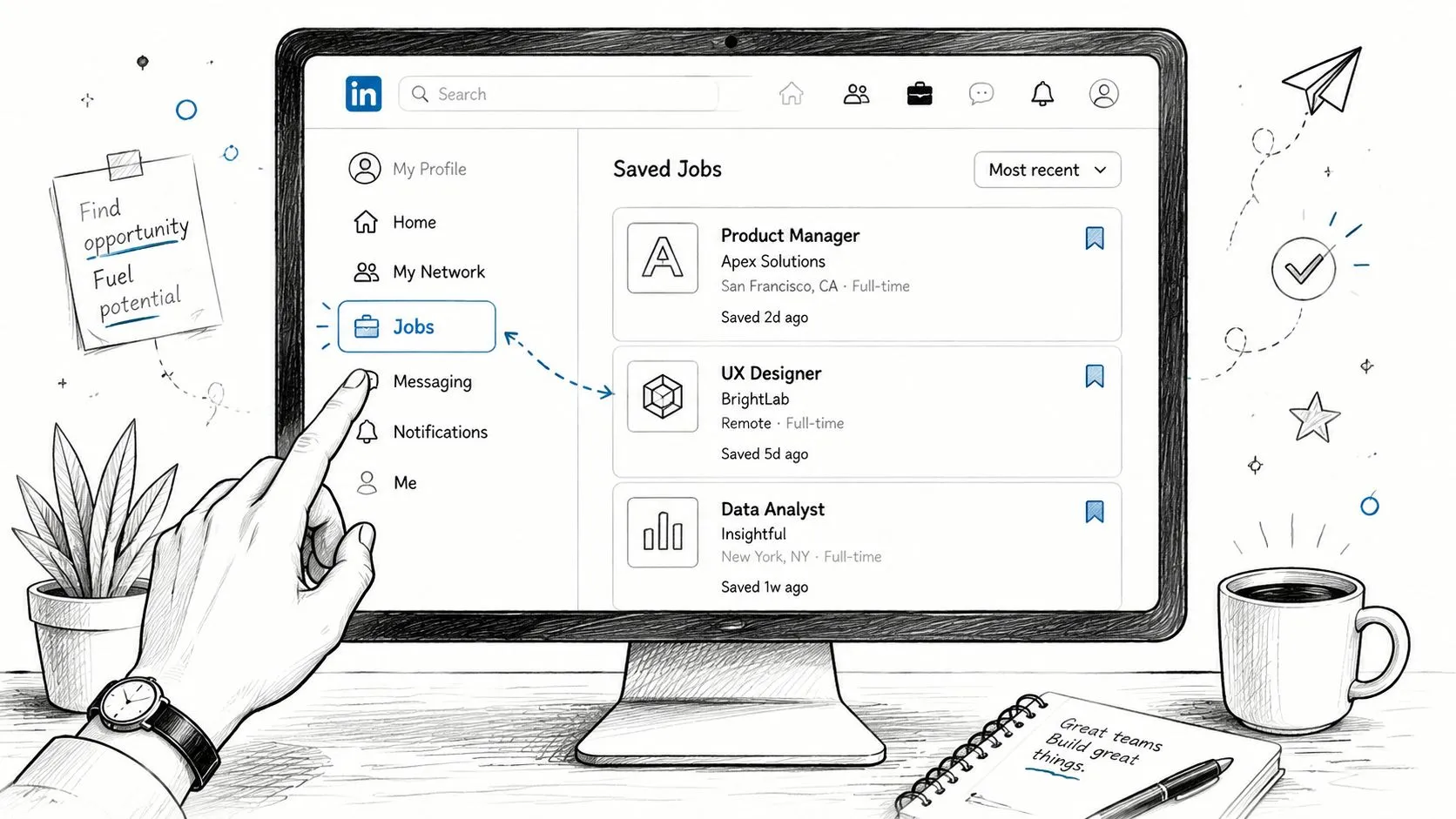
The direct path
On desktop, saved jobs live under the Jobs icon. Click My Jobs in the left sidebar, then click the Saved tab as shown in this desktop walkthrough.
That's it. Not your homepage. Not your profile. Not your notifications.
Use this sequence:
- Log in: Open your LinkedIn account in a desktop browser.
- Click Jobs: Use the top navigation bar.
- Select My Jobs: Look to the left sidebar or sub-navigation.
- Choose Saved: Make sure the Saved tab is active, not Applied or another view.
What trips people up
People usually fail in one of two ways. They look on the home feed because that feels intuitive, or they land in the wrong tab inside My Jobs and assume the list is gone.
Practical rule: If you don't explicitly click Saved, don't assume you're looking at saved jobs.
The desktop version is also the better place to move from browsing to action. You can open tabs, compare job descriptions, and upload a customized document more easily. If you need that step next, use this guide on how to upload a resume in LinkedIn.
Desktop is better for decisions
Use desktop when you need to:
| Task | Why desktop wins |
|---|---|
| Compare several roles | You can scan multiple tabs faster |
| Tailor a resume | Easier to edit and cross-check requirements |
| Clean up your list | Better visibility across saved entries |
If you're serious about a role, don't stay on your phone. Save on mobile if you want. Decide on desktop.
Find Saved Jobs on the Mobile App
Mobile is simple too. It's just hidden behind different navigation.
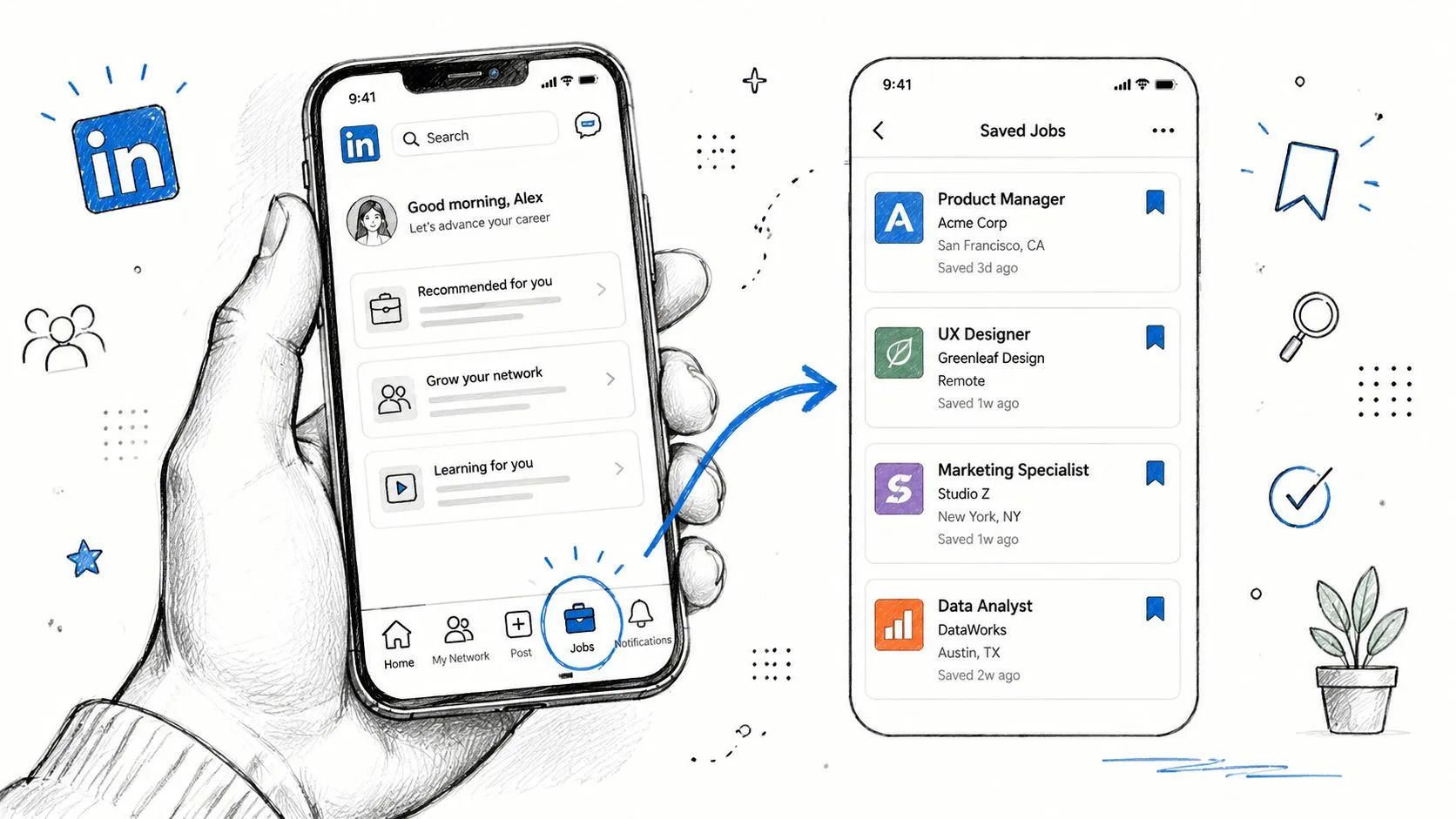
The mobile route
On the mobile app, tap the Jobs icon on the bottom bar, then select Job Tracker at the top. That screen defaults to a Saved filter according to this mobile-specific guide.
That applies to both iPhone and Android. The layout may shift slightly, but the logic is the same.
Here's the clean version:
- Open the app: Don't start in the main feed and scroll aimlessly.
- Tap Jobs: Use the briefcase icon in the bottom navigation bar.
- Open Job Tracker: Look near the top of the screen.
- Check Saved: It should default there.
Don't confuse the feed with your tracker
People often waste time. They tap Jobs, see a stream of recommended roles, and start swiping around like the saved list should magically appear.
It won't.
The saved list is part of your tracking workflow, not the general browsing feed. That's why Job Tracker matters.
For a quick visual walkthrough, this video gets the job done:
When mobile makes sense
Mobile is best for quick actions:
- Save fast: Bookmark a role while commuting or between meetings.
- Review later: Skim titles, companies, and locations.
- Flag priorities: Decide what deserves proper desktop attention.
Use the app to capture opportunities. Use a larger screen to judge them properly.
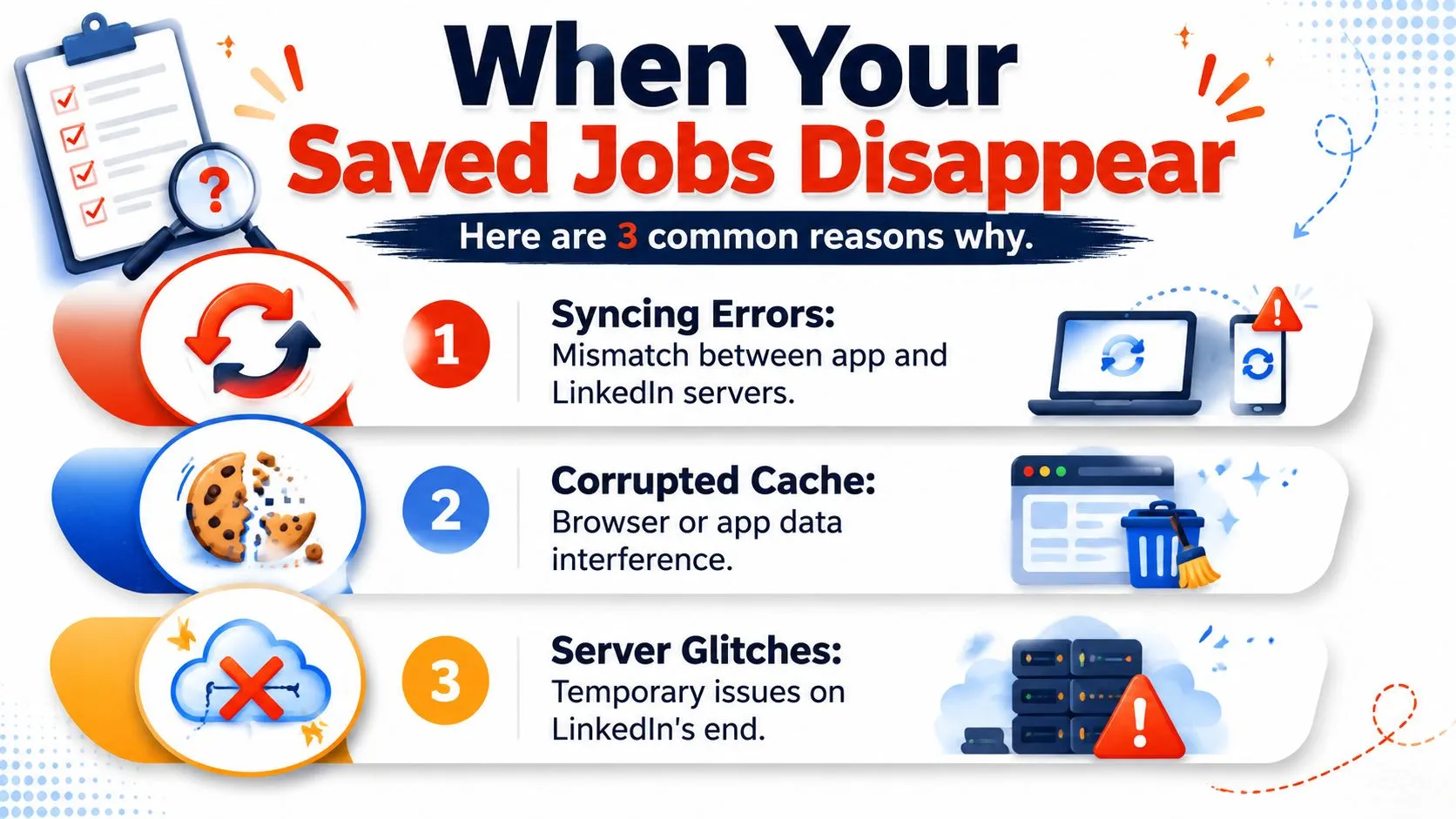
When Your Saved Jobs Disappear
This is the part most guides skip, and it's the part that does cause stress. You know where the list should be, but it's empty, stale, or refusing to load.
What's usually going wrong
The usual culprits are boring, but they matter:
- Syncing errors: The app and server stop talking properly.
- Corrupted cache: Old local data gets in the way.
- Server glitches: Sometimes the platform is the problem, not you.
The fix isn't “just log out and back in.” That advice is lazy.
Do this in order
If saved jobs disappear, a sync failure may be the cause. The recommended fix is to force-close the app, clear the device's local cache, and update the app to the latest version. That remediation sequence is outlined in the earlier StoryCV source already cited above.
Use this checklist:
-
Force-close the app
Don't just switch away from it. Fully close it. -
Reopen and check Job Tracker or My Jobs
Sometimes that alone restores the list. -
Clear local cache or browser data
If you're on mobile, clear app cache where your device allows it. If you're on desktop, clear browser cache and cookies. -
Update the app
Old app versions often create weird compatibility problems. -
Try another device
If desktop shows the jobs but mobile doesn't, the issue is probably local to the app.
If the list is missing on one device but visible on another, stop panicking. Your jobs are probably still there.
A fast diagnosis table
| Symptom | Likely issue | Best move |
|---|---|---|
| Saved tab is empty on phone only | Mobile sync or cache problem | Force-close, clear cache, update app |
| Saved jobs missing in browser | Browser cache issue | Clear cache and cookies |
| List appears delayed after saving | Sync lag | Refresh and wait briefly |
| Tabs look different than expected | Interface variation | Check Job Tracker or My Jobs again |
What not to do
Don't start randomly unsaving and resaving jobs. Don't assume they're permanently gone after one bad load. And don't keep hammering the refresh button while ignoring the cache problem.
A better habit is to keep your list small enough that you notice issues early. When the list is tight and active, glitches stand out fast. When it's a landfill, you won't even know what disappeared.
Use Your Saved List Like a Pro
This is where the feature becomes useful instead of decorative.
Stop hoarding and start sorting
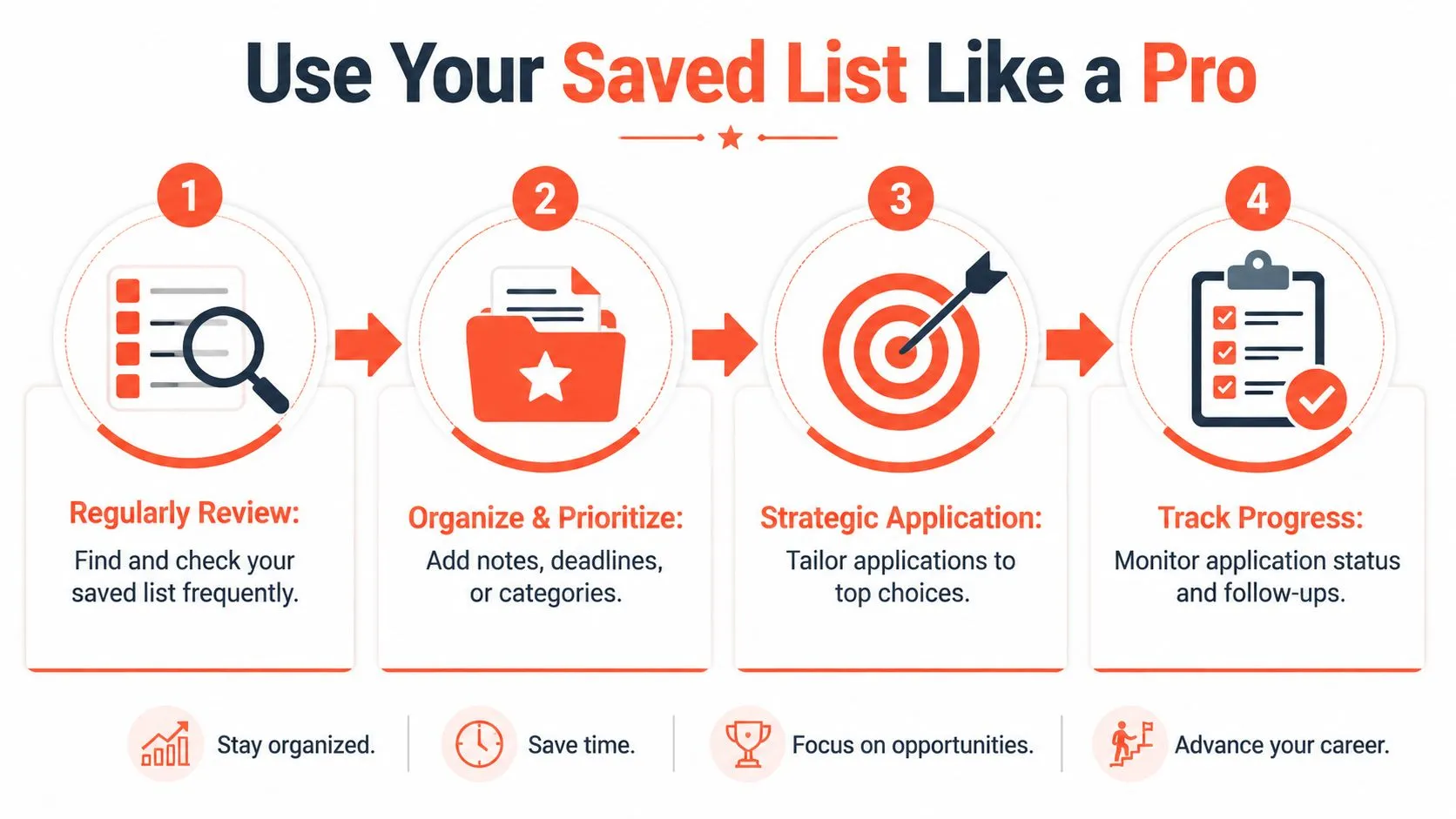
LinkedIn lets you categorize saved jobs into stages like Researching, Ready to Apply, and Interviewing. It's also smart to remove expired or irrelevant postings regularly based on this walkthrough of saved-job organization.
That's not admin work. That's decision-making.
Use a simple flow:
-
Researching
Jobs worth a second look. -
Ready to Apply
Roles that match your level, pay target, and direction. -
Applied
Done. Stop re-reading them. -
Interviewing
Active conversations only.
A better weekly routine
You don't need a complex system. You need a repeatable one.
- Monday review: Scan new saves and kill weak fits.
- Midweek action: Move serious roles into Ready to Apply.
- Friday cleanup: Remove dead listings and anything you wouldn't apply to now.
Your saved list should create momentum, not guilt.
If you're making a bigger jump into leadership or a more deliberate transition, this practical guide from Baz Porter for executive career moves is worth reading because it focuses on process, not platform theater.
Match effort to role quality
Not every saved job deserves the same energy. Some get a fast pass. Others deserve real tailoring.
| Saved job status | What to do next |
|---|---|
| Researching | Check scope, level, and team fit |
| Ready to Apply | Tailor your resume and pitch |
| Applied | Track follow-up and outcome |
| Interviewing | Prepare examples and decision criteria |
For the roles that survive your filter, don't send the same resume again and again. Tailor it properly with this guide on tailoring your resume to a job description.
A saved list works when it helps you say no faster, focus better, and apply with intent. That's the whole game.
StoryCV is a Digital Resume Writer, not another template box. It helps you turn real experience into clear, credible application stories fast, so when you do open that saved job, you're ready to apply with something sharper than a recycled bullet list.